
Cannot move the folder
Have you ever tried copying your data from one computer to another? If you receive the error “Cannot move the folder because there is a folder in the same location that can’t be redirected”, this article provides a solution.
The Cause
We have seen this problem with local folders on a computer that synchronize to cloud based data. iCloud or OneDrive folders on a local Windows 10 workstation will give you this error if you try and move them.
When you try and move a folder that is synchronized with cloud based data, Windows tries to copy the data on the cloud, not the data in the local folders. This generates the error “Cannot move the folder because there is a folder in the same location that can’t be redirected”.
Breaking the synchronization between the local folders and the cloud data will allow you to copy the folders to another computer.
The Solution
Follow these easy steps to break the synchronization:
- Press Windows key + R and type in regedit and press Enter
- Click Yes to the warning
- In the registery Editor – Locate the path Computer\HKEY_CURRENT_USER\Software\Microsoft\Windows\CurrentVersion\Explorer\User Shell Folders
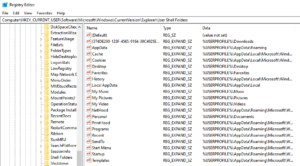
4. Double click on the folder that you want to change

5. Change to the correct folder and then click OK
6. Close the Registry Editor once you are done and then restart the PC
7. Once you log back in, the folders will not point to the correct location
You will now be able to copy the folders to another computer. Please remember that the synchronization is now broken and the folders you have copies to the new computer are now local folders. You will have to setup synchronization again if you wish for them to update with data stored on cloud based storage.


